
For macOS
Screenshots thatdon’tdisappear.
Capture with ⌘⇧3 and ⌘⇧4, then edit, copy, and share instantly without digging through Finder.
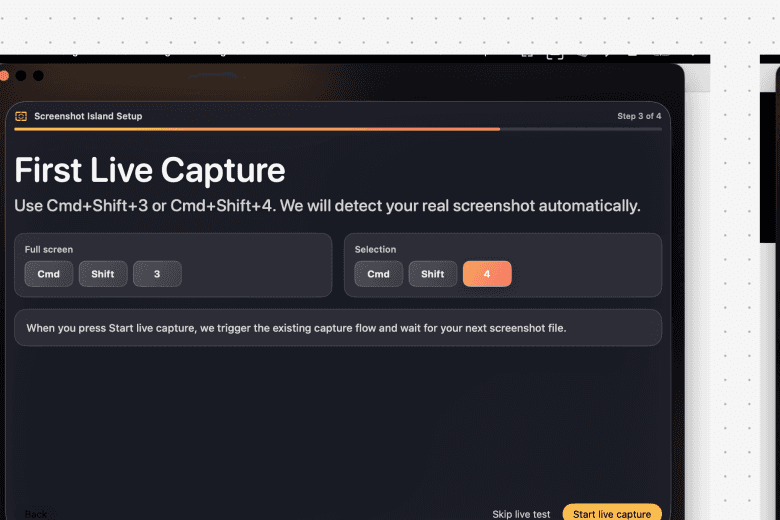
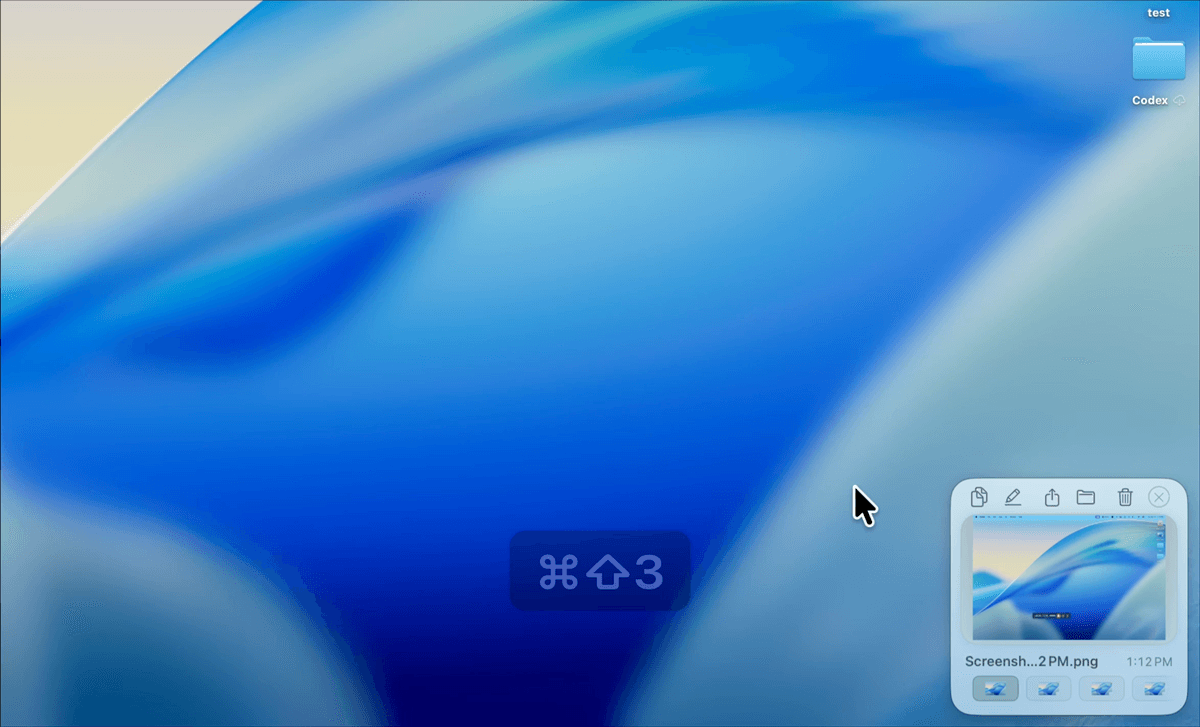
CommandShot in action
A quick look at capture, recent screenshots, and the next action.
The problem
Mac screenshots disappear before you can use them.
The default Mac preview vanishes in a moment. That breaks the flow, hides the capture, and sends you looking through Finder just to finish the next step.
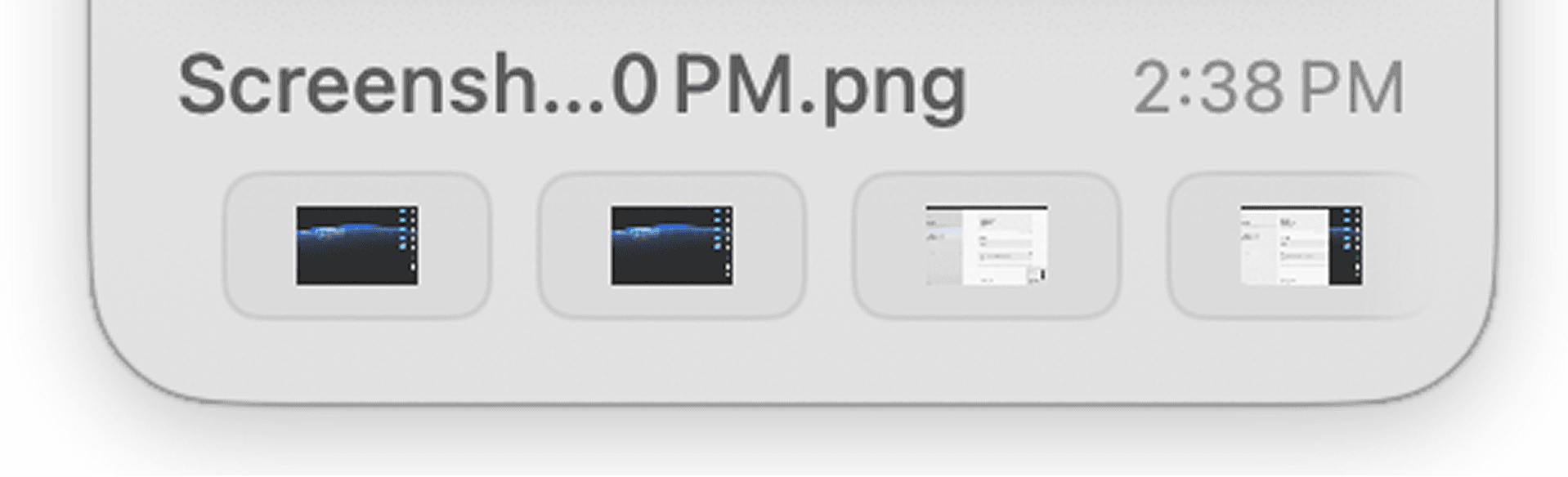
Default Mac screenshots disappear too fast
The default preview vanishes in a moment, which breaks the flow and sends you digging through Finder.
CommandShot keeps the screenshot ready
Keep captures visible longer, bring them back with ⌘⇧2, and move straight into the next action while the screenshot is still in front of you.
How it works
Use the Mac shortcuts you already know.
01
Press ⌘⇧3 for a full-screen capture or ⌘⇧4 to capture part of the screen.
02
The screenshot stays ready instead of disappearing before you can act on it.
03
Use ⌘⇧2 to show or hide recent screenshots and jump back into the one you need.
Editor
Edit the screenshot before you move on.
Crop, annotate, and clean up the screenshot inside the same workflow instead of opening another app.
Add markup, crop the frame, and save the result without opening a separate editor or breaking your flow.
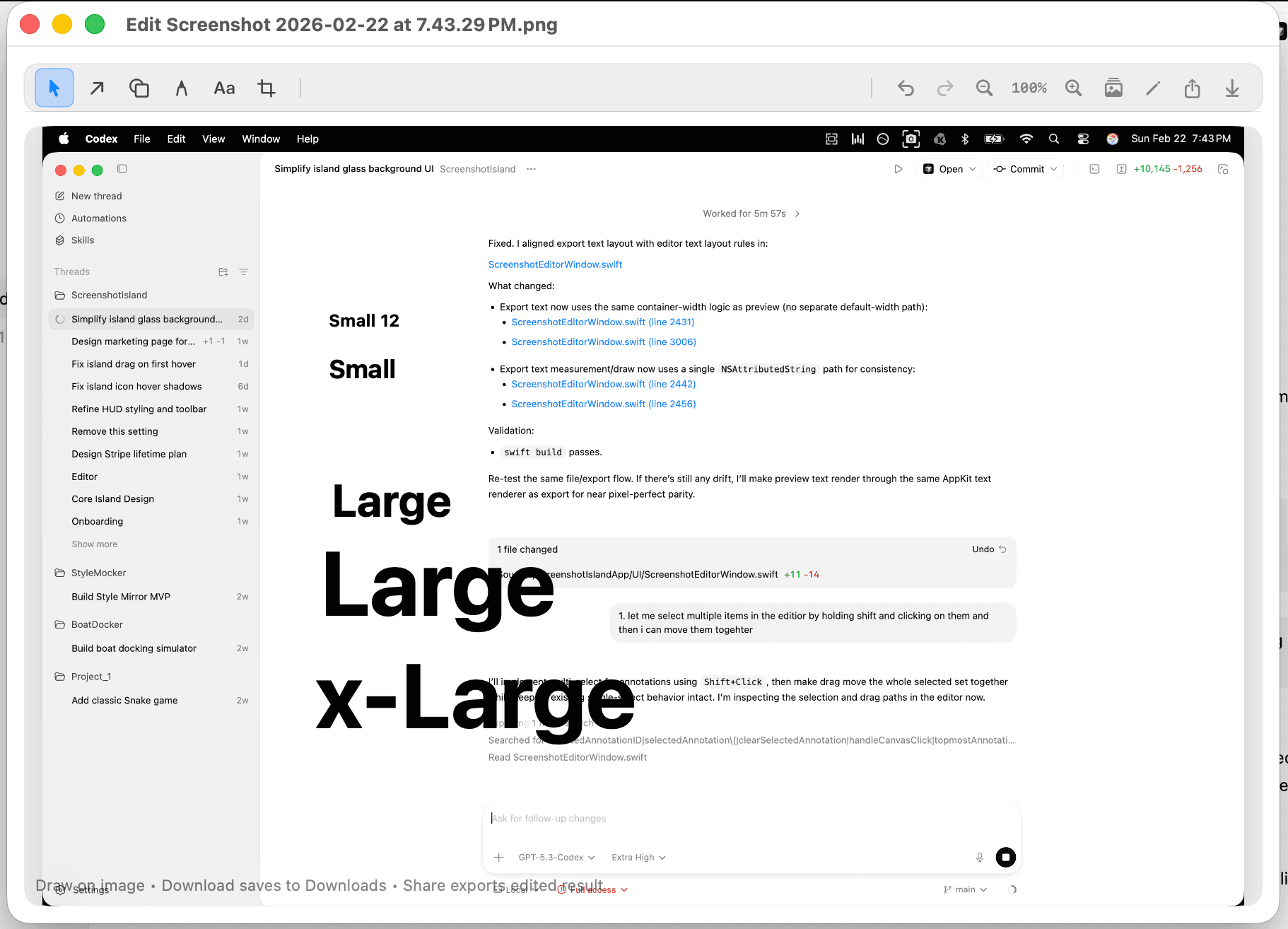
Built-in editor
Annotate, crop, and clean up the screenshot without leaving the capture flow.
Quick markup
Add arrows, lines, text, and highlights while the screenshot is still fresh.
Crop and clean up
Trim the image down and remove distractions before you share it.
Save the edited result
Finish the markup and save the updated screenshot right from the editor.
Pricing
Try it free. Keep it for $9.99.
Use the full app first, then upgrade only if it fits the way you work.
7-day trial
Use the full app first.
One payment
No recurring charge.
One Mac
One license per device.
One upgrade
$9.99
One-time purchase
Lifetime access on one Mac
Full access during the trial.
Download now, use the full app, and upgrade only if it fits the way you work.
7-day free trial
No subscription
One license per Mac
One license unlocks one Mac. Buy one per device.
FAQ
Practical answers.
The details people usually want before downloading or buying.
Is CommandShot only for Mac?
Yes. CommandShot is designed specifically for macOS screenshot workflows.
Does it change my existing screenshot shortcuts?
No. You keep using Cmd+Shift+3 and Cmd+Shift+4 exactly as you do now.
Can I edit and annotate screenshots?
Yes. CommandShot includes a built-in editor for quick markup and cleanup.
Can I share or copy screenshots right away?
Yes. Copy, share, reveal, rename, and delete actions are available directly after capture.
How does pricing work?
CommandShot has a 7-day free trial, then a one-time purchase of $9.99 for one Mac.
Ready when you are
Keep screenshots moving.
Download CommandShot for Mac and make every screenshot easier to use.
7-day free trial. One-time purchase. Works with native macOS screenshots.